When developing on a XAMPP stack, I find myself switching Xdebug on and off because of Xdebug’s performance penalty.
There are good recommendations on how to improve XAMPP’s performance, e.g. here or here. However i prefer to have the Xdebugger boldly switched off unless needed.
I work in a Windows environment so to that end, i wrote two batch files that I place inside my XAMPP directory next to XAMPP’s native apache_start.bat and apache_stop.bat.
The first script starts apache with the debugger activated: apache_debug.ps1. It thereby injects a block of Xdebug directives in the PHP.ini file.
The second script restarts apache without the debugger. Here the Xdebug directives in PHP.ini are commented out before Apache is started.
For convenience, there is also a third script to check the current Xdebug mode.
The scripts also work for running Apache as a service.
How to Install:
Copy the three scripts to your XAMPP installation, typically c:\xampp. If your XAMPP is in another location, change the $xamppDir declaration at the start in each of the three scripts to what’s applicable.
How to use:
Run the scripts from a terminal.
How to improve:
Here is an optional VS Code integration:
If you want VS Code to auto-toggle your Xdebug mode only for debugging sessions, a typical approach is:
1. Add two shell tasks in `.vscode/tasks.json`:
– one to run `c:\xampp\apache_debug.ps1` (before debugging starts),
– one to run `c:\xampp\apache_restart.ps1` (after debugging ends).
2. Reference those tasks from your PHP debug configuration in `.vscode/launch.json` using:
Excerpt: A common layout need: left-aligned āpreviousā link, centered page numbers, right-aligned ānextā link. Setting the Pagination blockās items justification to āSpace Betweenā achieves this ā until you reach the first or last page. The previous/next child block is not rendered when not applicable, so the pagination block ends up with two items and the center/nav shift left or right. This note explains two practical fixes and an accessible, performant filter-based solution.
The Gutenberg core pagination-block can be used inside a Query-loopblock and contains three childblocks: a block showing a link to the previous page with posts, a block with pagenumbers and a block showing a link to the next page. The links to the next and previous page can be a textlabel or an arrow or a combination of the two.
I wanted this pagination on the bottom of my page and i wanted the previous-page arrow to align left, the pagenumbers in the middle and the next-page arrow to align right. To achieve this, i selected the pagination block and in its toolbar I selected ‘Change Items Justification’. After selecting ‘Space Between Items’, I accomplished what I wanted.
However, when visiting the first page, all got mis-aligned because when there is no ‘Previous Page’ ( when you are on the first page ) the block does not render into an empty page-element, but it gets not rendered at all. That leaves the pagination-block with only two items and since alignment is set to space between this means the pagenumbers move to the left. Something similar happens on the last page of the query.
I want the elements of pagination to be fixed and not be moving around while navigating between pages.
My first thought was to use the child blocks of the pagination-block on their own. I made a block with 3 columns and tried to move the ‘Previous Page’ block to the left column, the ‘Page numbers’ block to the middle column and the ‘Next Page’ to the right column. That way, i thought, when the ‘Previous Page’ element disappears, the column that contains it is still there, keeping the layout fixed.
I reconned being a child of the Query Loop block would give these blocks enough context to work on their own. But regretably this was not possible.
In the block-meta of the query-pagination-previous block, I found that only the pagination block is an allowed parent:
You just can’t drag the Previous-Page-Block to an empty column or other block to help you fix its position.
First solution
You can’t move a pagination childblock outside the pagination-block. But you can remove them from the pagination block. You can make three columns each containing a Pagination-block. Since all three instances of the pagination block get their context from the same Query-loopblock, they act in excactly the same way. Now you can remove the pagenumbers and the next-page blocks from the left pagination-block. You remove both previous- and nextpage blocks from the middle pagination block and then remove previous-pageblock and pagenumbers from the right pagination block.
I did not investigate on the cost of extra queries that need to be made using this admittedly not very elegant solution. But it works.
Second solution
The previous-page and next-page render to empty content when they are not applicable. But ofcourse after rendering, all blocks go through some filters, also when they result in empty content.
So adding a filter to the rendering of these blocks enables us to replace the empty content with some empty placeholder element that ensures justifying the items always takes place with the same numbers of items. Some inline style regarding the margins is added here, but this can ofcourse also be achieved by adding some classes / css*.
Since this is obviously something that attributes to the looks of the website, it should probably be added to the theme’s functions.php or somewhere that gets invoked from there.
Conclusion
Two pragmatic options: three synchronized Pagination blocks (no code) or the lightweight filter+CSS approach (recommended). The filter approach preserves layout, is accessible and performant, and keeps editor ergonomics unchanged.
* You can ask Copilot for this, but I did it for you and it provided also some accessability additions on the run:
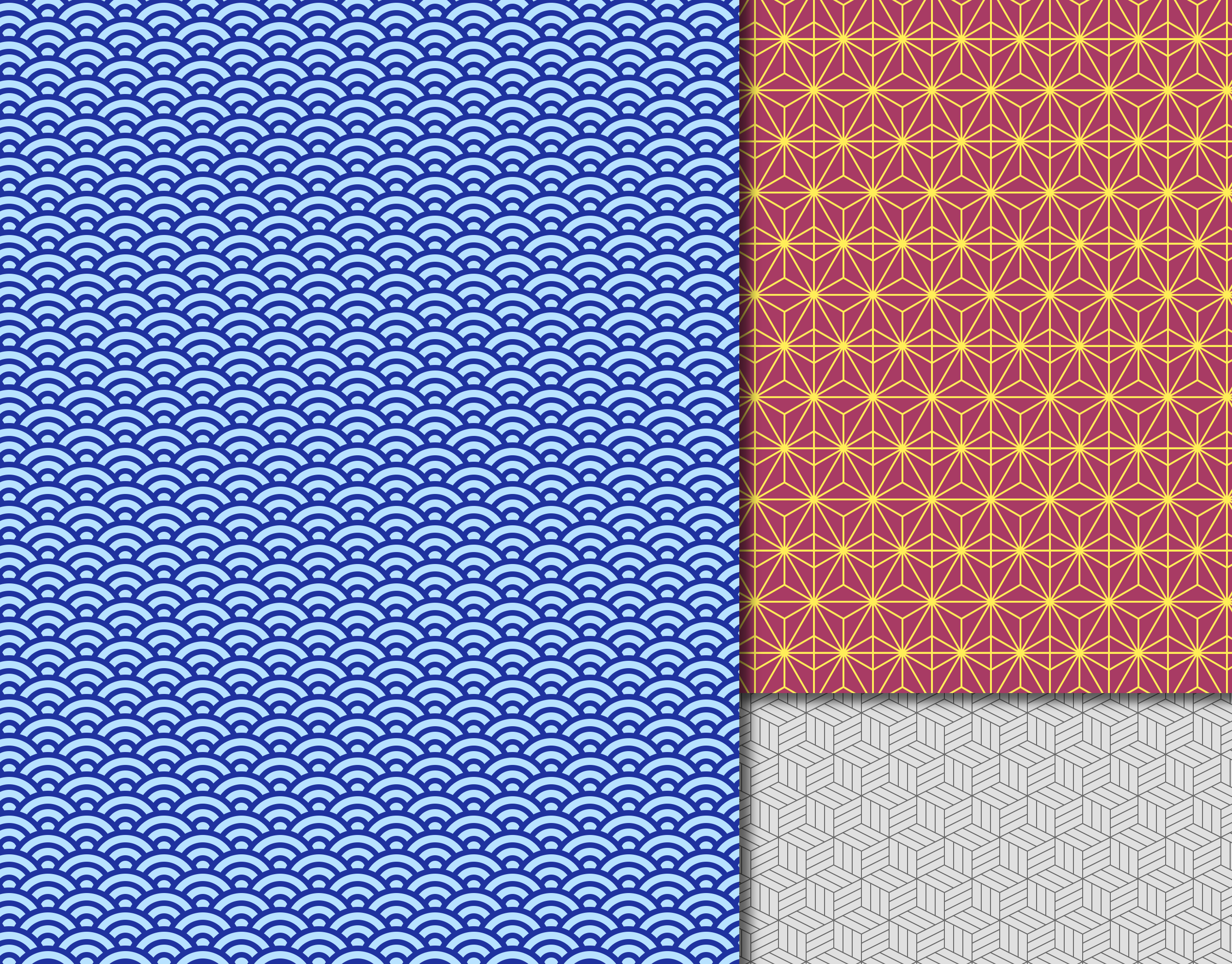
I needed backgrounds with wallpaper patterns that you can seamlessly place next to each other, like these for example:
There are plenty of examples to be found if you search for something like ‘seamless pattern images’. If the license allows it, you can use them as a background for, for example, a Gutenberg Group block or Cover block. (In the settings dialogs for the background of these blocks, you can specify that the image should not be stretched but tiled next to each other, resulting in corresponding CSS background-size and background-repeat rules).
You might want to customize these kinds of patterns to your own taste: color, line thickness, shape, size of the repeated base element, etc. Of course, you can also draw/create something yourself in, for example, Illustrator or Inkscape (the latter is preferred due to the views on intellectual property that Adobe imposes on its users). There are also online generators available that produce these kinds of patterns (add the words āonline generatorā when searching).
In any case, it would be better if you had this functionality within the WordPress block editor. Then you wouldnāt have to keep switching between the generator and WordPress, and you wouldnāt have to keep downloading and uploading patterns (and possibly exporting them to a usable format). This would also serve users who find all of this too cumbersome when they need new or customized patterns.
What is really desirable, then, is such an online SVG pattern generator, but as part of the Gutenberg editor. To achieve this, I went through several steps, starting with the background pattern below:
The pattern in the background of this frame is called Asanoha in Japanese, which means hemp. It doesnāt actually resemble a hemp leaf, but that doesnāt make it any less beautiful. And by the way, who really sees two fish in the constellation of the same name?
With this pattern in mind, I went through the following eight steps:
Creating the SVG
Creating JSON
Passing JSON to the block editor
Adding Functions that work with parameters
Adding Inspector Controls to the Block Editor
Creating a Renderer for Template, Parameters, and Function Results
Presets
Insert the SVG as a block background image
Finally, I created some additional patterns with different presets for the parameters. At the end, there is an overview of these.
1. Create SVG
The Asanoha pattern is a repetition in both horizontal and vertical directions of the following basic figure:
The bottom half is a mirror image of the top half.
The dimensions are determined by just one parameter: the width. The height is ā3 times the width.
Additionally, you can vary the line thickness, line color, and fill color, which makes these suitable as adjustable parameters.
Below is the SVG with a width of 80px, a line thickness of 2px, #FFFFFF as the line color, and #000000 as the background color:
To allow the parameters to be adjusted in the WordPress block editor, I created a JSON object that can be passed to the block editor. This specifies the parameters and also passes the SVG as a template so that the block editor can create an SVG using the parameters and the template.
The templates were initially so simple that a separate template engine didnāt seem necessary. I created a simple render function that could use a single regular expression to insert parameter values from the block editor into the template. Itās possible that using a more advanced template engine might prove worthwhile later.
To make it easier to add new patterns later, I placed the JSON object in a file in a separate folder in the plugin directory: svg-tpl.
The block editor now has a specification of the parameters and a template for the SVG. However, to create the SVG, it also needs to use values derived from those parameters. For example, the height of the Asanoha SVG is equal to ā3 * dx (the width parameter).
Therefore, a property with JavaScript functions is also passed to the block editor. For the height of the Asanoha base element, the function `view.functions.svg_height` is passed, which calculates the height based on `dx`. When evaluating the function, the entire JSON object is also passed as the `data` parameter, so the function has access to all parameters in the JSON object:
Now that the JSON object can specify which Inspector controls can be configured, the `edit-block` function can be created.
First, a select box is filled with options corresponding to the names of all JSON files found in the `svg-tpl` folder. Initially, I only had “Asanoha,” but the intention is to add more patterns. Based on the JSON object selected in this dropdown, controls are added to the panel in the Gutenberg Inspector controls. The parameter `dx`, as defined in `asanoha.json`, has the type `range`. This means the `edit` function adds a `RangeControl` to the panel. Other properties of `dx` are used to further configure the `RangeControl`, such as minimum and maximum values.
In addition to the `range` type, `edit.js` currently recognizes the types `string`, `select`, and `colorpanel`. These allow corresponding controls to be added. If the type is not recognized, it is ignored.
See: src/edit.js op Github
6. Render template, parameters and functions
Once the necessary parameters are configured, the final SVG can be generated using the `renderTemplate` function. Initially, a template engine like Mustache seemed logical, but Copilot suggested a simple regex that works for now. Since this render function cannot recognize functions, the function results are explicitly placed in intermediate variables so that only variables need to be replaced during rendering, not functions evaluated.
See: src/templating.js op Github
7. Presets
I extended the JSON objects for the patterns with a `presets` property, an array containing groups of parameter presets. This shows that small changes to the parameters can result in significantly different appearances for the pattern. SVGs with these presets get an additional dropdown in the Inspector controls.
See: `src/edit.js`
To distinguish them, I gave the preset groups names, often as far-fetched as Asanoha.
8. An SVG as a background
What should happen to the SVG after rendering? SVGs can be included in a webpage in various ways. In principle, the SVG could be saved as a file (e.g., in `wp-uploads/`), and that file could then be selected as a background image. However, this is not without issues because WordPress does not allow SVG uploads without modification.
Alternatively, an SVG can be included directly in the HTML and even used as a background image via an inline CSS style rule like the one below. This also saves an additional request to the server.